
 +40 (746) 44 97 97
 info@dainovaro.com

Unconventional ways to unlock ARIS Models
When working with ARIS, there are several situations in which a model may become locked for editing.
The most common scenario occurs when multiple users open the same model simultaneously. The model is available for editing only to the user who opened it first. All subsequent users can access the model in read-only mode.
A model may also be locked intentionally by a user. This option is commonly used at different stages of the model lifecycle. For example, during the approval stage, a model can be locked so that all reviewers see the same version while preventing any modifications. Likewise, an approved model may be locked to preserve its final state while remaining available for reference when working with other models and objects. It is also possible to lock not only the model itself but also its objects. As a result, occurrences of these objects in other models also become unavailable for editing.
An intentional lock can be removed either by the user who applied it or by a user with administrator privileges once the required activities have been completed.
However, unexpected locking situations may also occur. For example, a user may find that a model is protected against editing and opens only in read-only mode, while the system indicates that the model is locked by that same user. In such cases, the standard solution is to terminate the user's session using ARIS Admintool (Fig. 1). In most cases, this resolves the issue and unlock models.

Fig. 1. Terminating a user session in ARIS Admintool
In rare cases, terminating the user's session does not resolve the problem. In such situations, ARIS developers recommend the following solutions:
- Change the Maximum session duration (in minutes) parameter in ARIS Connect → Administration/ Configuration/ User management/ Users/ General (Fig. 2).
- Restart the ARIS server.
- Close the browser session completely and reopen it (when using ARIS Connect).
- Clear the browser's local cache, session cache, and cookies, then log out of ARIS and log in again (when using ARIS Connect).
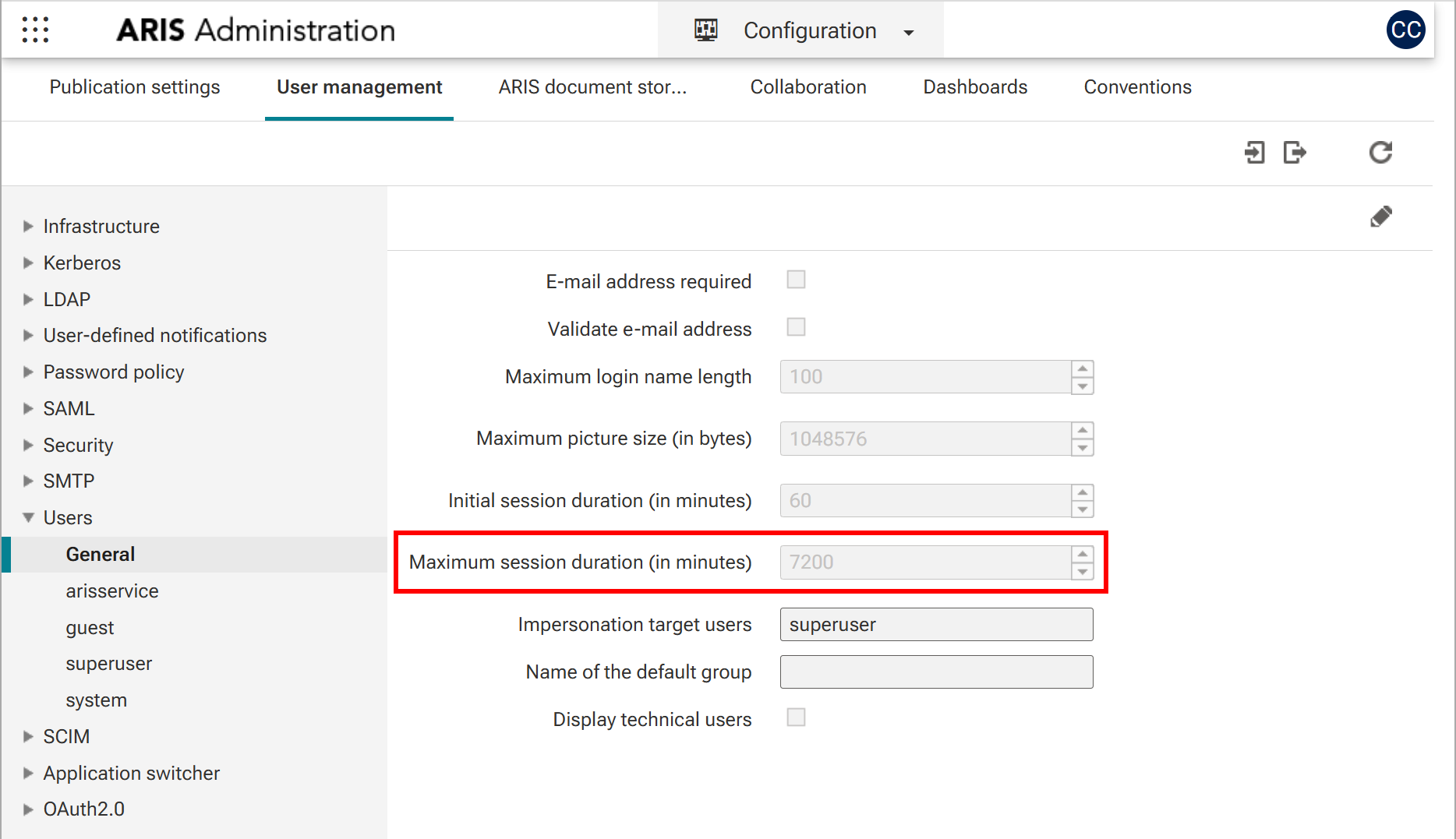
Fig. 2. Maximum session duration parameter in ARIS Connect
It is important to note that when finishing work in ARIS Connect, users should always log out properly using the Log Out button instead of simply closing the browser tab. This practice helps prevent unexpected issues related to user sessions in ARIS.
