
 +40 (746) 44 97 97
 info@dainovaro.com

Comparing models in ARIS Connect
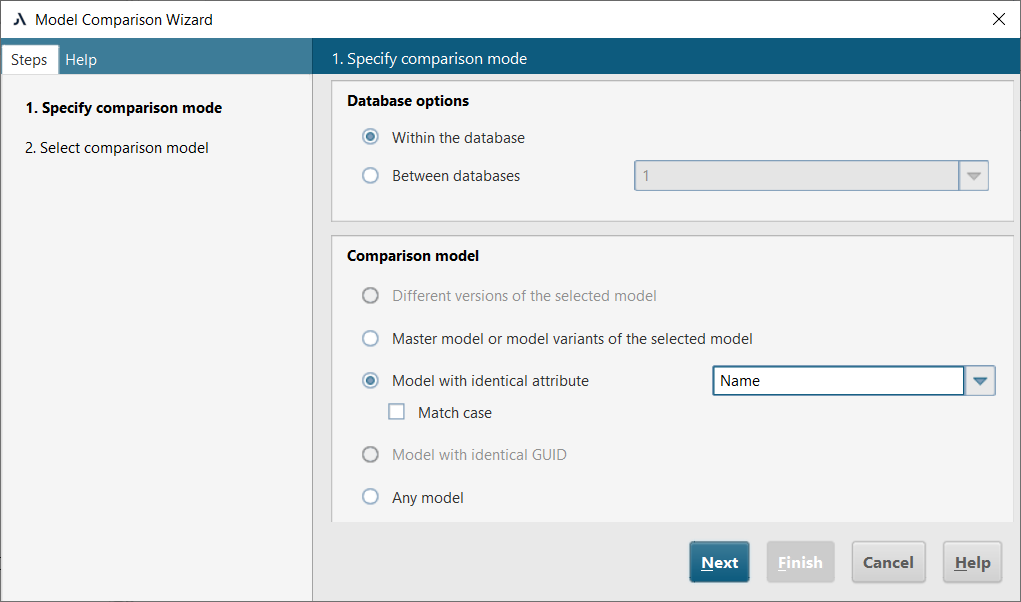
Figure 1. Model comparison options in ARIS Architect
As shown in Figure 1, ARIS Architect allows you to compare models both within a single database and between databases. The available comparison types include different versions of the same model, a master model and its variant, models with the same attribute or GUID, any two models directly.
In contrast, the model comparison functionality in ARIS Connect is more limited. In ARIS Connect, you can compare:
- the master model and variants of the selected model within the database;
- different versions of the model within the database;
- models with the same GUID in different databases.
The functionality for comparing models with the same attribute or for comparing any two models is not available in ARIS Connect.
Master model and variants of a model within a database
The comparison is launched from the repository in the Models and Objects section. In the properties of the model selected, go to the “Variants” tab. Then, for the variant or master you wish to compare, click the “three dots” button and select “Compare with this model” (Fig. 2).
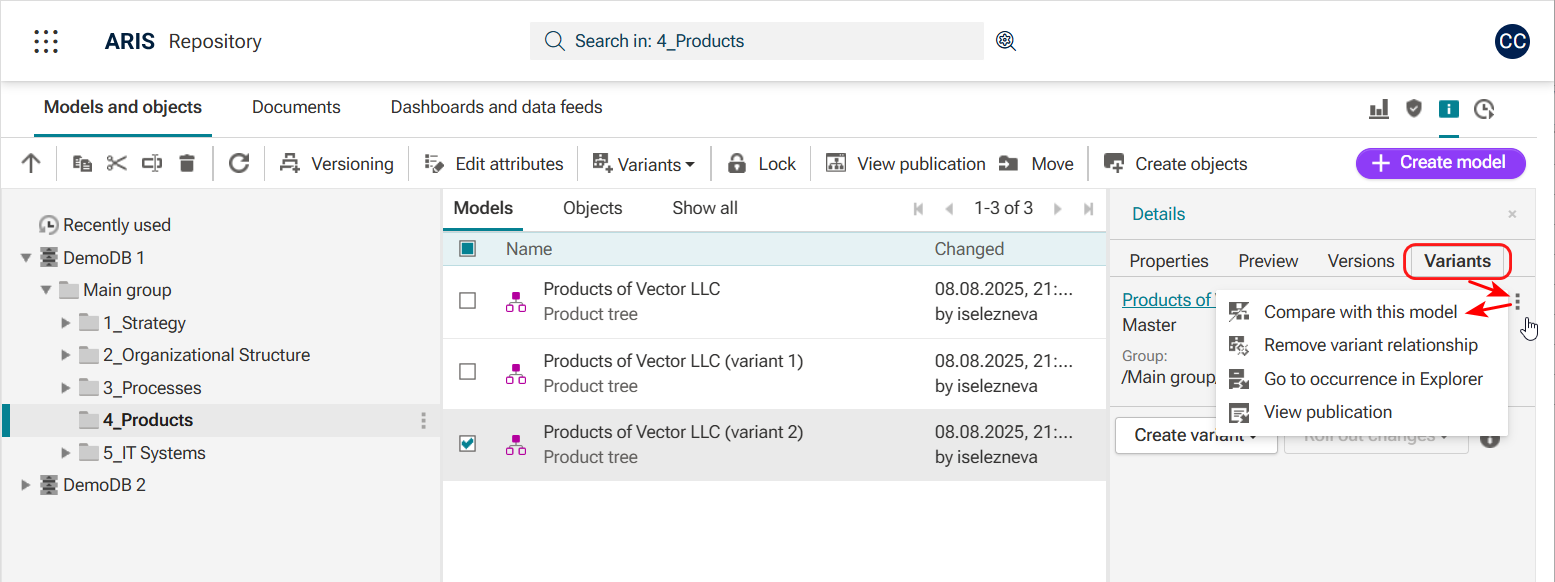
Figure 2. Launching comparison of a model and its variant
The comparison result will be displayed in a separate page (Fig. 3).
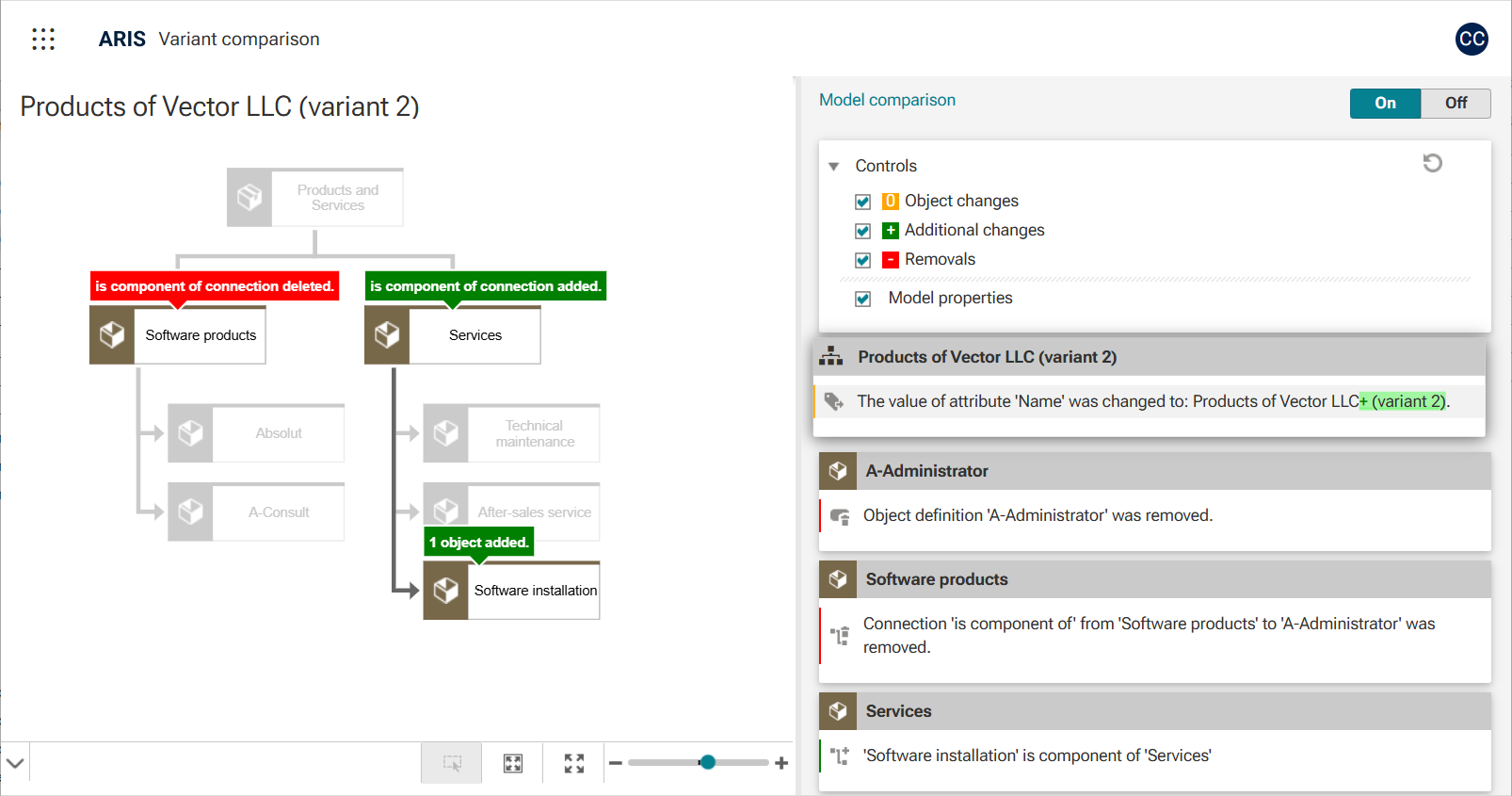
Figure 3. A result of comparing a model and its variant
Note that if a model has no variants, this option will not be available.
Different versions of a model within a database
This comparison is launched from the "Published content" section.
For this feature to be available, the ARIS Connect administrator must configure and enable the "Compare" option in the database publication settings under "Administration" (Fig. 4).
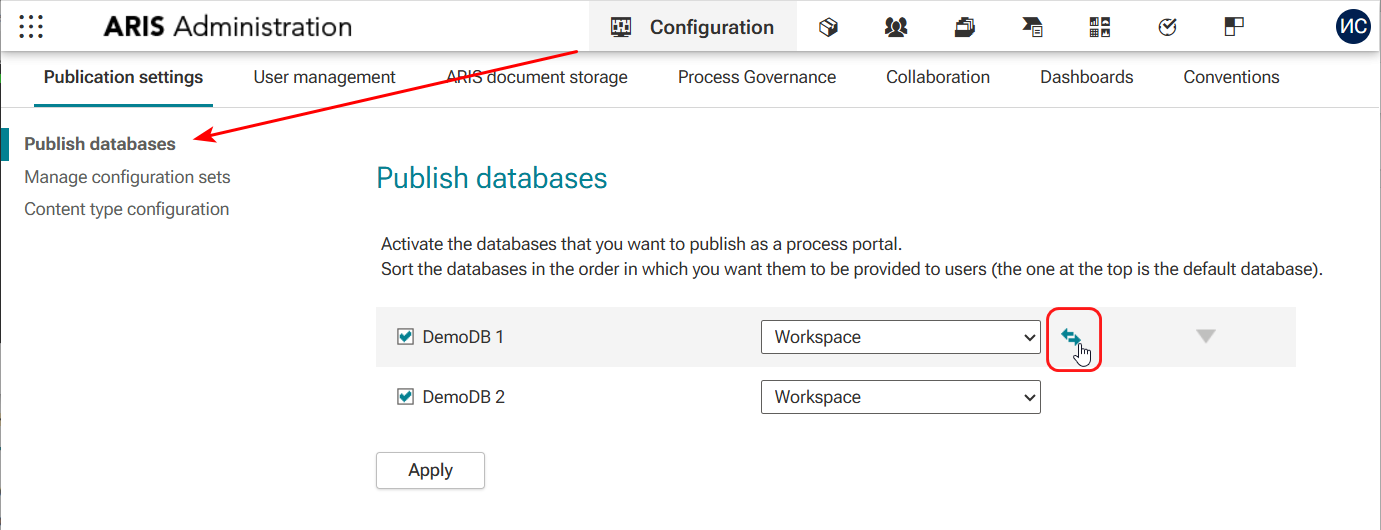
Figure 4. Enabling option to compare models within a database
Enable the "Comparison enabled" option and select the current database and the version to compare with (Fig. 5).
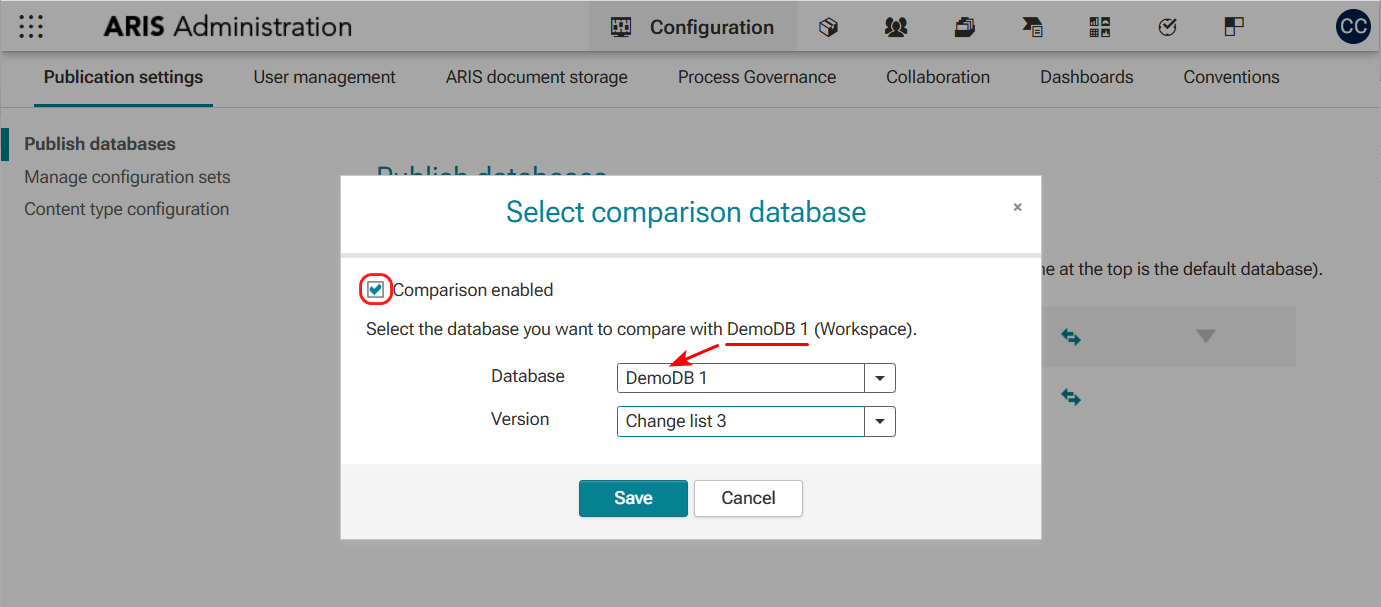
Figure 5. Setting up model comparison within a database
To run a comparison, open the model in Publish mode. If the model has versions, the “Compare models” button will appear on the Diagram tab in the toolbar (Fig. 6).
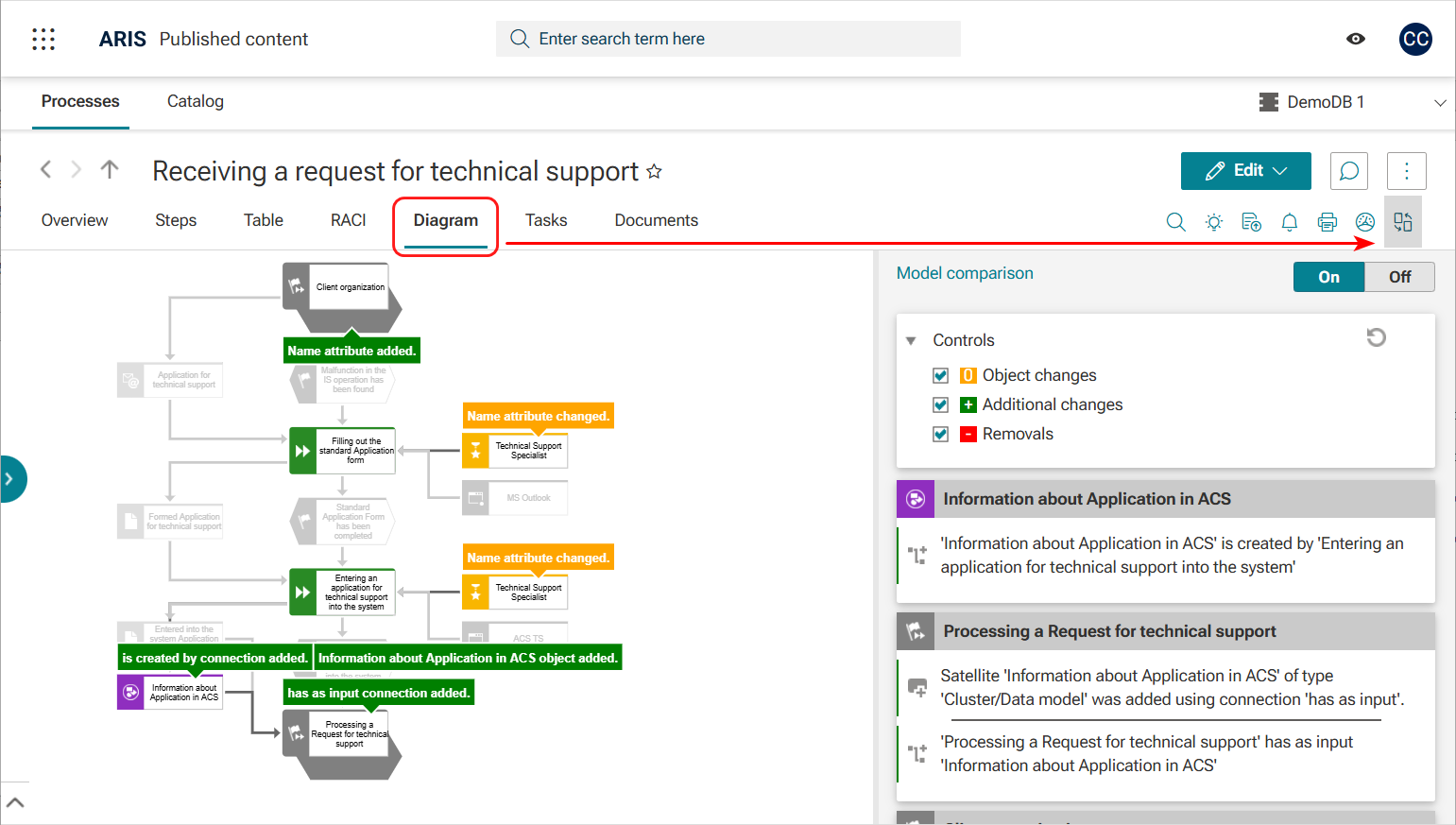
Figure 6. An option to compare model versions in the “Published content” section
Note that this option works only with versioned databases that contain at least one version.
Models with the same GUID in different databases
To start the comparison, navigate to the “Published content” section. The process is similar to comparing model versions within a single database. However, during the configuration, you must specify a different target database that contains the model for comparison
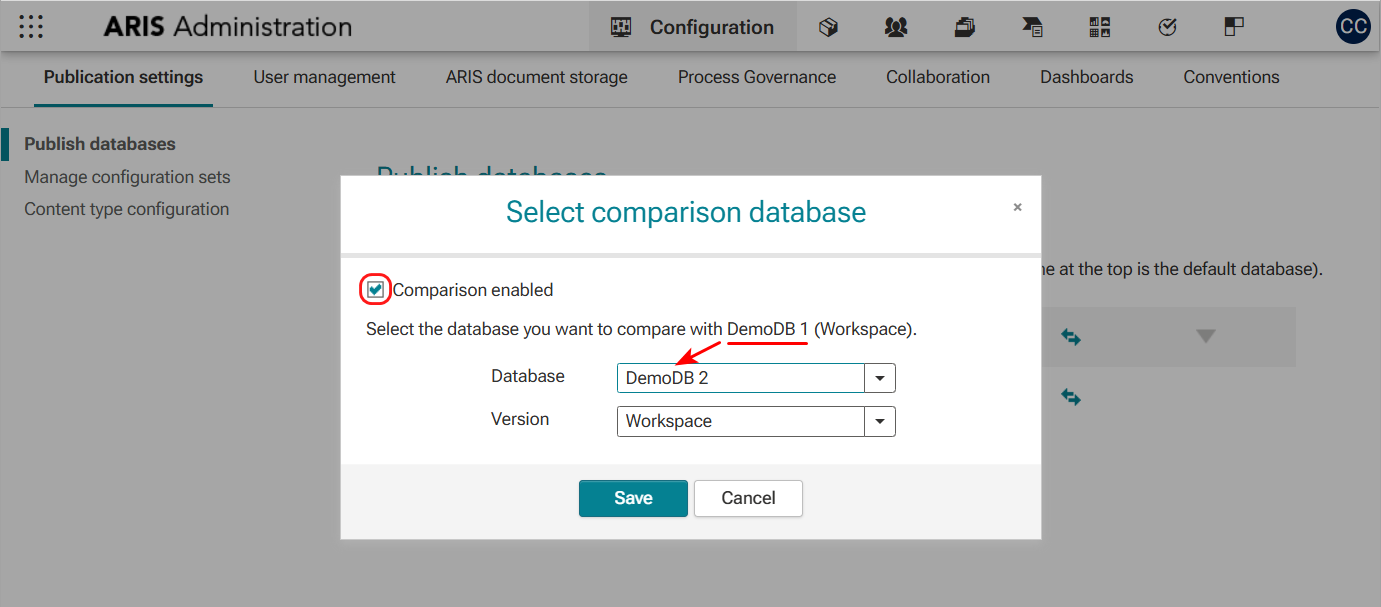
Figure 7. Setting up comparison of models with the same GUID in different databases
Note that the visibility of the “Compare models” button in the toolbar can be enabled or disabled within the configuration settings for Fact sheets of specific object types.
