
 +40 (746) 44 97 97
 info@dainovaro.com

Importing models from ARIS Express into ARIS Architect
These models include an Organizational chart, processes in VAD, BPMN, and EPC notations, a Data model for describing data structures, a model for describing IT infrastructure, a System landscape model, and the General diagram - a model used to describe the subject areas of an organization representing content that is not covered by any other models.
ARIS Express is easy to learn and makes it possible to create the required number of process models and their surrounding context in order to adequately describe the modeled subject area. However, this tool does not include a database, which makes it difficult to analyze information, generate analytical reports and job descriptions, and perform business process optimization. Therefore, there comes a point when the models prepared in ARIS Express need to be transferred to the "full" ARIS - ARIS Architect. ARIS Architect is the tool that provides the capability to import models from ARIS Express.
Let us consider the import procedure step by step.
- By default, models created in ARIS Express are saved at the following location:
[System drive]\Users\[Current user]\Documents\ARIS Express.
You can also choose any other folder for saving. ARIS Express models have the .adf file extension. - Open ARIS Architect, log in to the required database, and define the folder into which the models from ARIS Express should be imported.
- In the selected folder, open the context menu by right-clicking and choose Import\ARIS Express models… (Fig. 1).
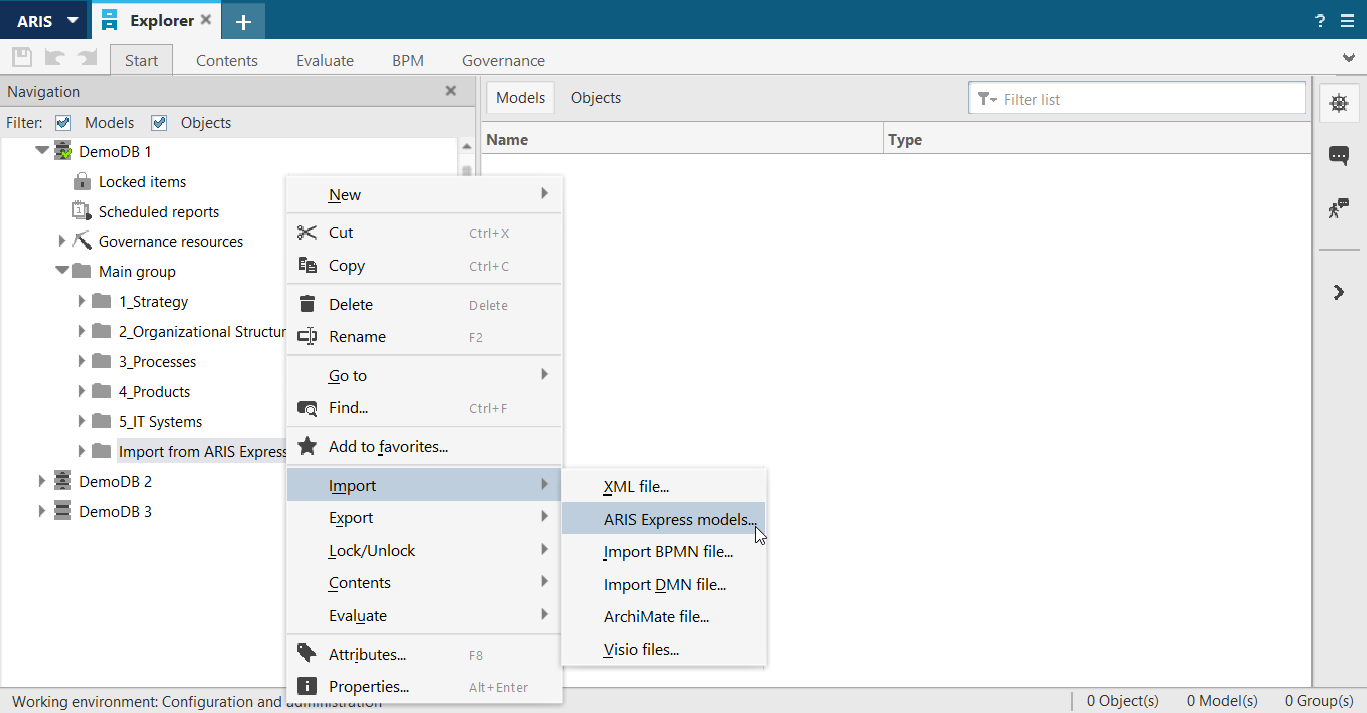
Figure 1. Opening the ARIS Express model import wizard - A window opens where you need to select which models should be imported into ARIS Architect (Fig. 2).
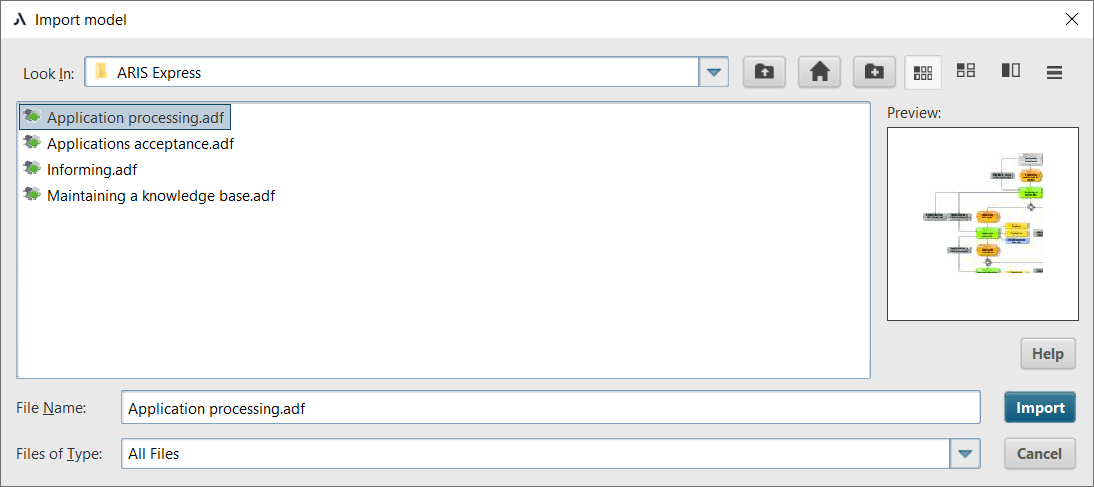
Figure 2. Selecting an ARIS Express model for import - After clicking the Import button, the Express Model Import Wizard opens (Fig. 3).
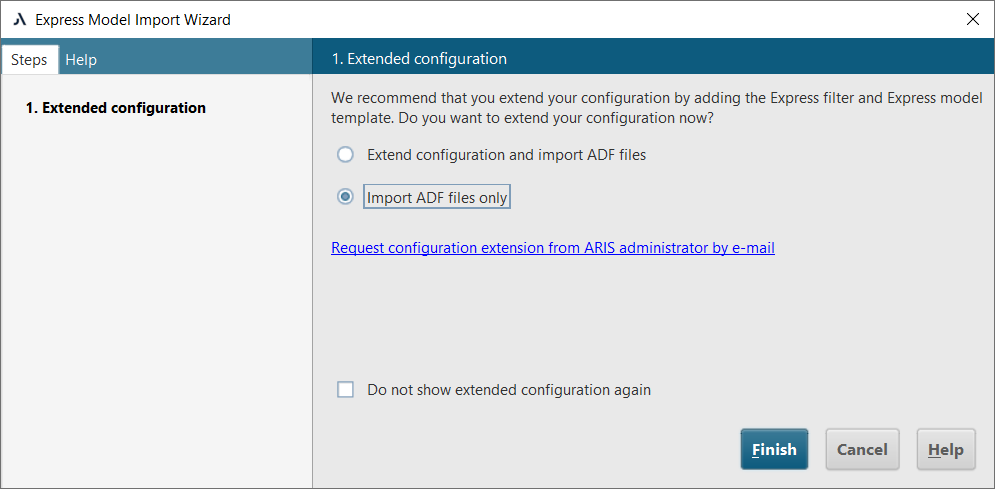
Figure 3. Express Model Import Wizard
The user is offered two import options: extend and standard. The difference between them lies in whether only the ARIS Express model itself is imported or whether ARIS Express symbols are imported as well.
Let us consider both options.
Option "Import ADF files only"
When this option is selected, only the model itself is imported into ARIS Architect. Since some symbols in ARIS Express differ from standard ARIS symbols, part of the symbols in the imported model will be replaced with standard ARIS Architect symbols (Fig. 4, Fig. 5).
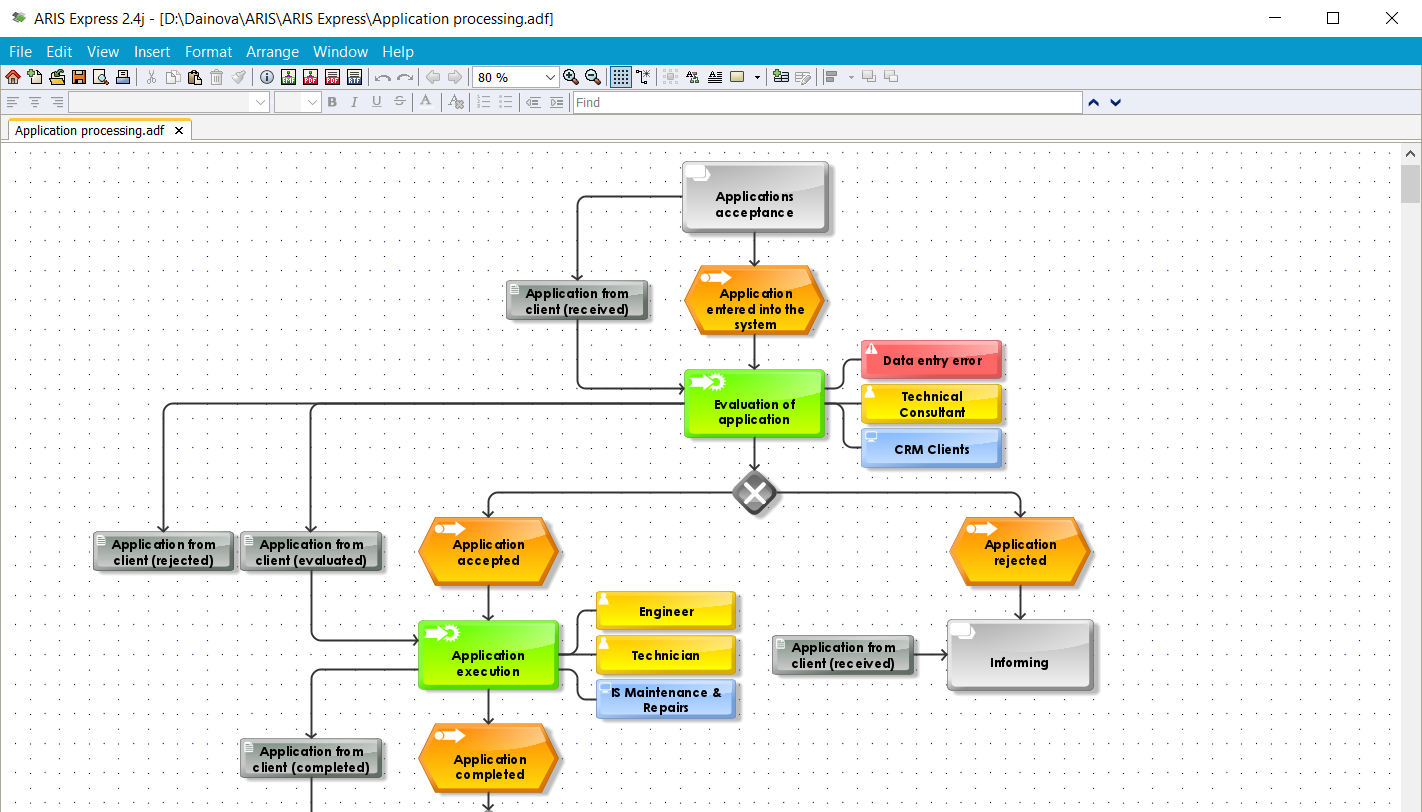
Figure 4. Model view in ARIS Express
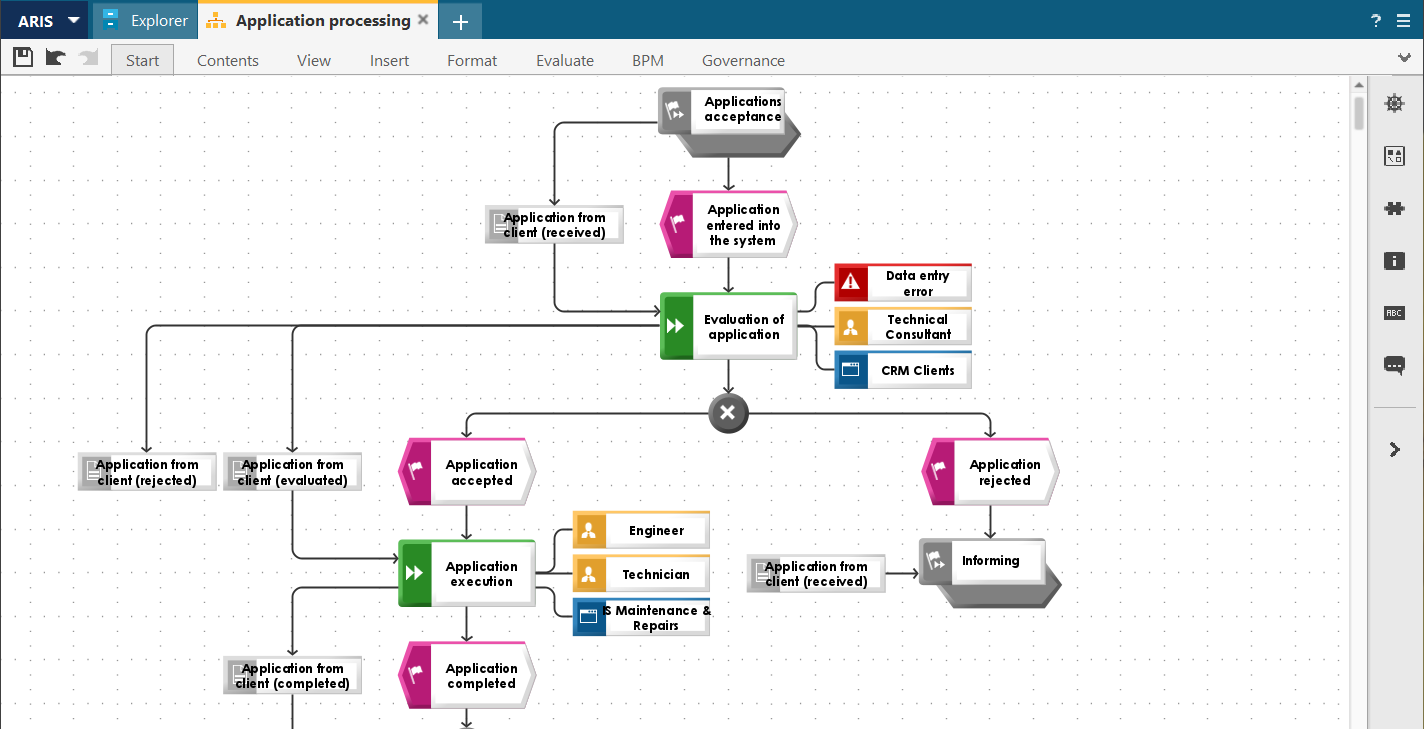
Figure 5. Model view in ARIS Architect
Thus, when selecting the Import ADF files only option, the ARIS Express methodology is not imported.
Option "Extend configuration and import ADF files"
When using this option, the ARIS Express filter and model template are imported, and the ARIS Architect configuration is extended with ARIS Express object symbols.
In the second step of the Import Wizard, the user can select the filters to which ARIS Express symbols should also be added (Fig. 6).
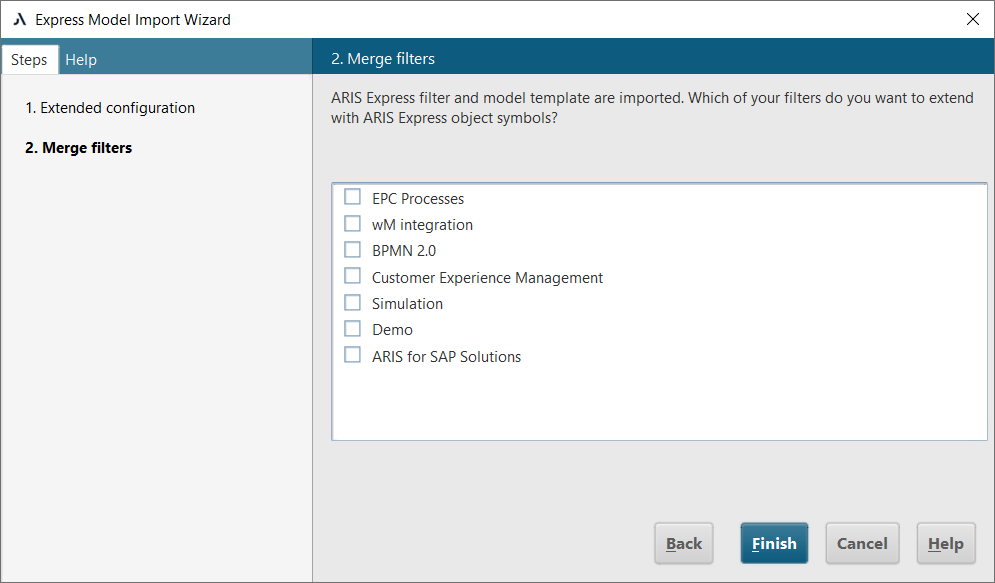
Figure 6. Selecting filters to extend the methodology in ARIS Architect
After selecting the required filter and clicking Finish, the system prompts the user to reconnect to the ARIS database in order for the methodology changes to take effect (Fig. 7).

Figure 7. Message indicating the need to reconnect to the database
It should be noted that at this stage, after clicking OK, only the methodology and the model template are transferred to ARIS Architect, and ARIS Express symbols are added to the selected filters (Fig. 8).
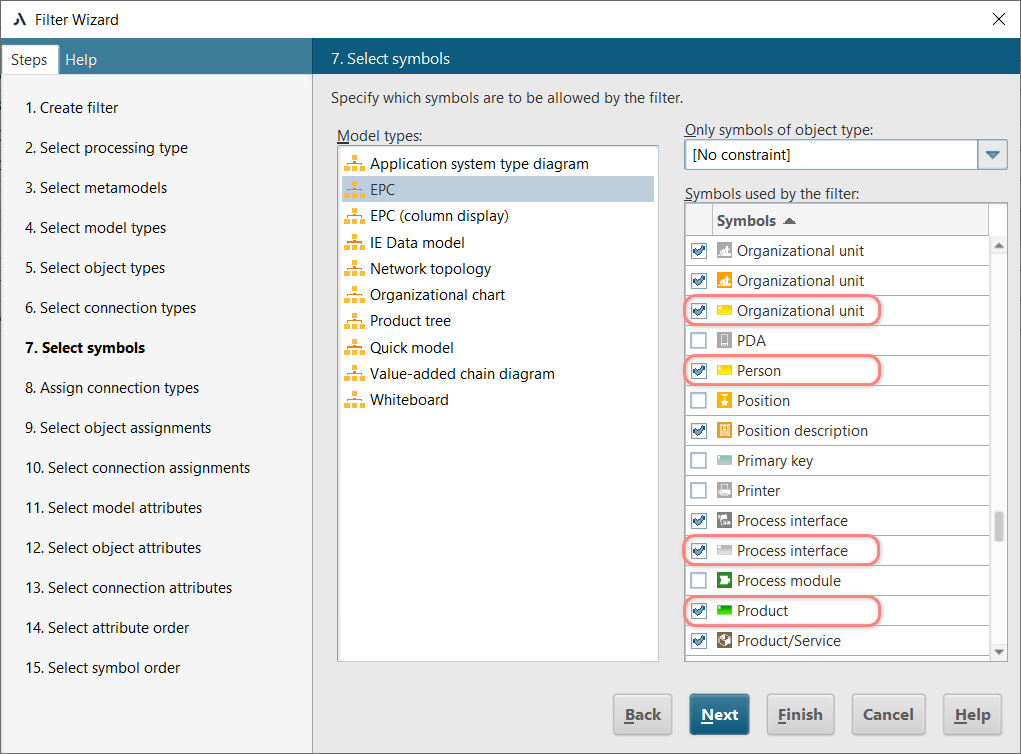
Figure 8. ARIS Express symbols added to the selected filter
In ARIS Architect, the model appears in the explorer, but it is empty (Fig. 9).
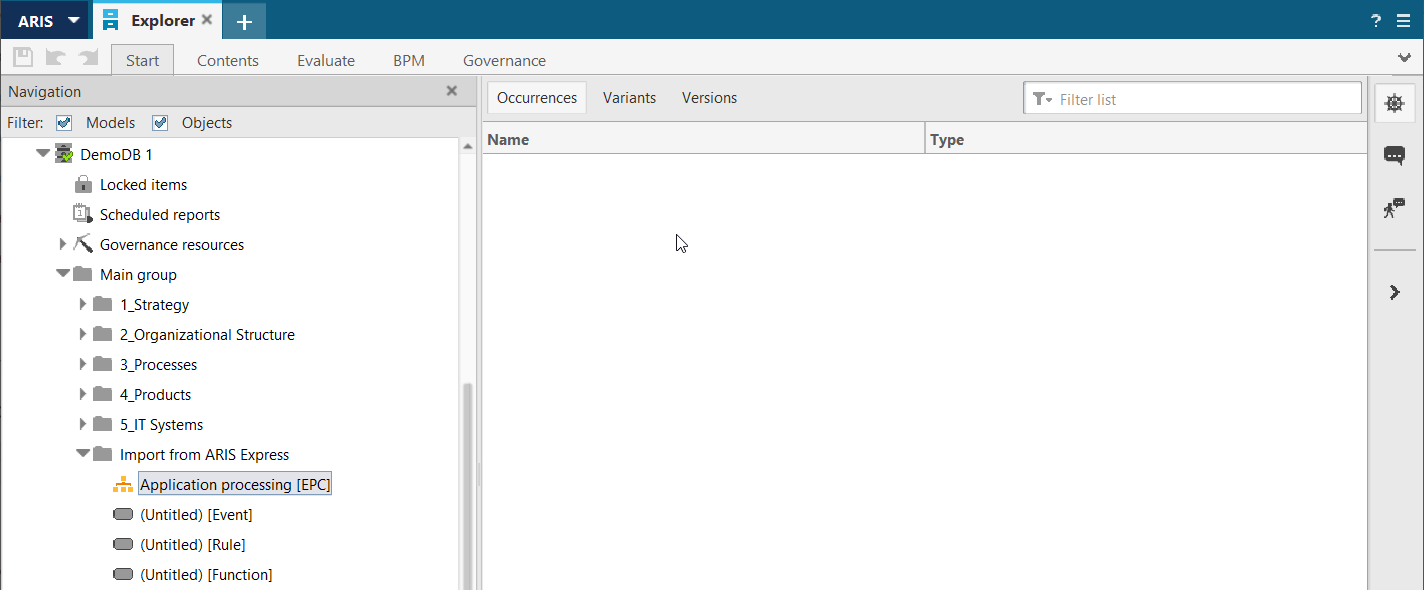
Figure 9. Imported empty model from ARIS Express
Next, the empty imported model and objects must be deleted, and then the import from ARIS Express should be performed once again. In this case, the system no longer asks to select import options and simply transfers the entire model. As a result, the model in ARIS Architect is created with the same symbols as in ARIS Express (Fig. 10).
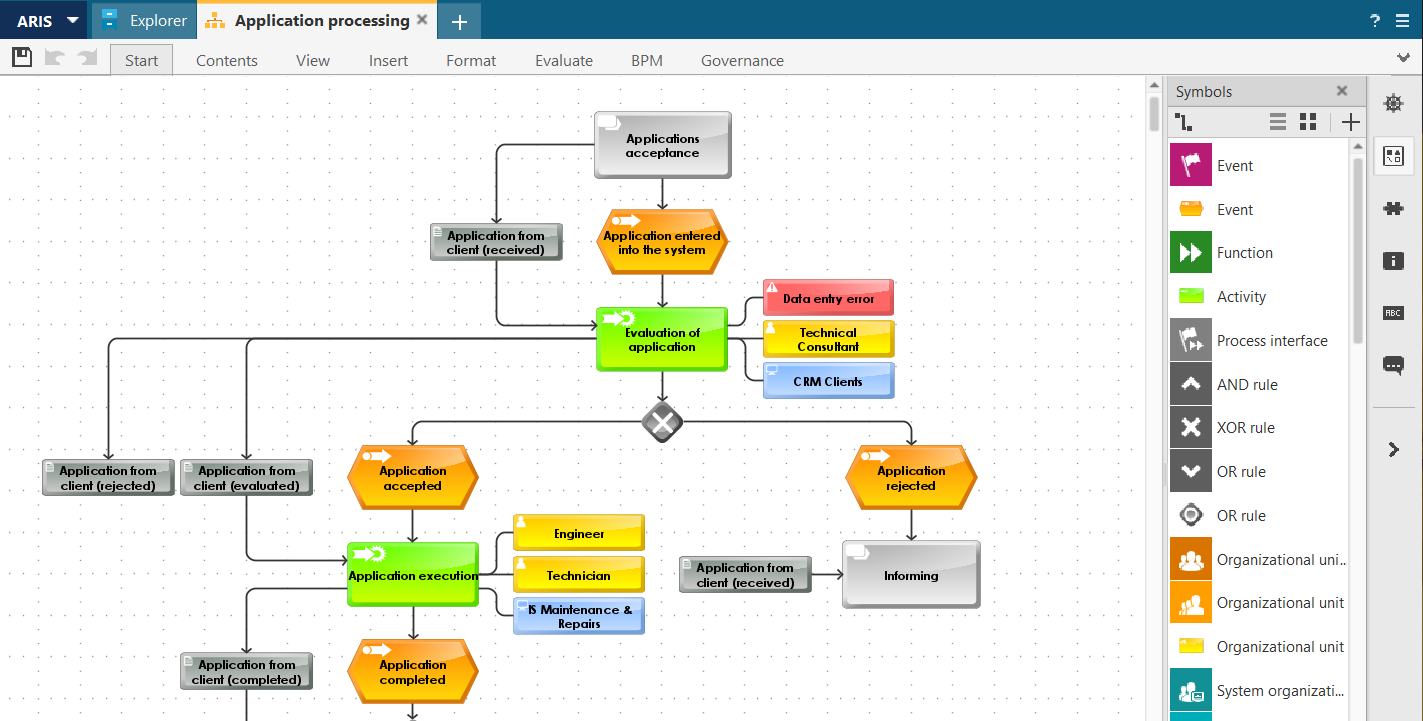
Figure 10. Imported model in ARIS Architect
It should be taken into account that after making changes to the configuration, any further imports of models from ARIS Express will be performed without the Express Model Import Wizard, and all imported models will be displayed using ARIS Express symbols.
If you have any questions related to importing models from ARIS Express into ARIS Architect, please, contact us by the contact form or at info@dainovaro.com and we provide you with more information.
